iOS 26 Guide: Liquid Glass, Calls, AI Features
Published
The iPhone update that changed how the phone looks — and how it answers calls
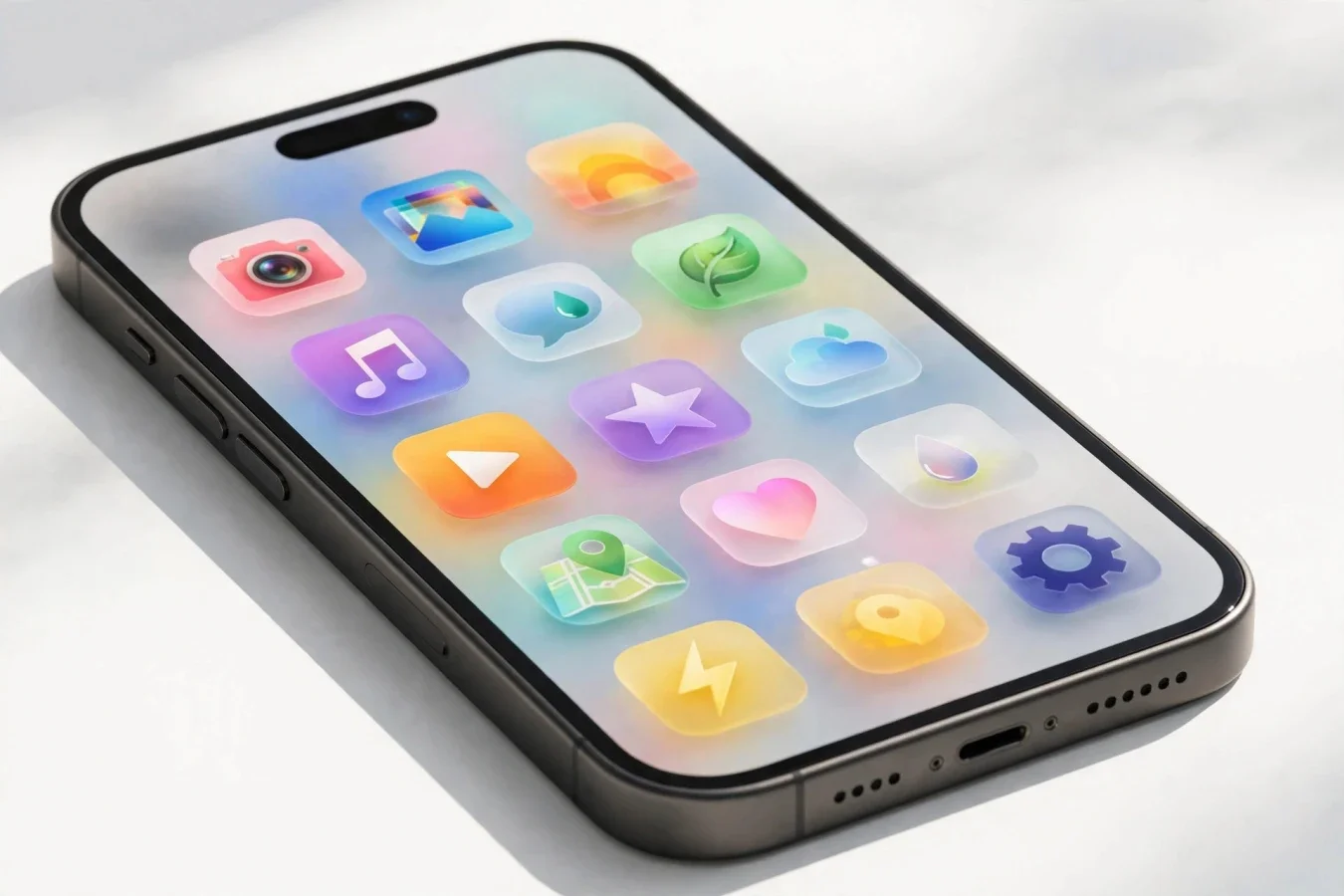
iOS 26, released on 15 September 2025 alongside the iPhone 17 lineup, was the biggest visual overhaul for the iPhone since iOS 7 in 2013. Apple called the new design language Liquid Glass: translucent, shimmering controls and navigation that let content show through, across iOS, iPadOS, macOS, watchOS, and visionOS.
A year on, the design is no longer the novelty. What matters now is which iOS 26 features are actually worth using, which ones need a newer iPhone, and which ones work on almost any compatible phone. This guide covers the design, the call features that have become genuinely useful, the AI tools, and the compatibility list — so you can set up your iPhone properly, whether you just updated or you've been running iOS 26 for months.
Liquid Glass: what it is, and how to tame it
Liquid Glass is not just a new wallpaper. It's a system-wide design language: buttons, tab bars, notifications, and controls are rendered as translucent glass-like elements that refract and reflect the content beneath them. The idea is depth and focus — the interface recedes, and your photos, messages, and apps come forward.
In practice, reactions have been mixed. Some people love the modern, layered look. Others find it distracting, especially where text sits over busy backgrounds, or where transparency makes controls harder to read. Apple has responded with refinements across the 26.x updates, including, in iOS 26.1 on 3 November 2025, more control over the Liquid Glass appearance, and in version 26.2, Clear and Tinted options for a more frosted look.
If you like the look but find it too much, try these steps:
- Go to Settings, then Display and Brightness, then Liquid Glass, and choose between the available styles, including Clear and Tinted where offered.
- Reduce transparency in accessibility settings if text legibility is a problem. That trades the glass effect for higher contrast, which many people prefer for everyday reading.
- Give it a week. A design change always feels jarring on day one. After a few days, most people stop noticing the glass and start noticing whether the apps themselves work well — which is the real test.
The Phone app: Call Screening and Hold Assist
If Liquid Glass is the most visible change in iOS 26, the Phone app changes are the most useful — and they don't require a new iPhone or Apple Intelligence to work.
Apple put significant effort into the Phone app in iOS 26, delivering what one guide called the most notable upgrade to the Phone app in years. The Phone app gained a unified layout for Favourites, Recents, and Voicemails, and two features that directly address the two most annoying parts of phone calls: spam, and waiting on hold.
Call Screening
Call Screening automatically answers calls from numbers not in your contacts, asks the caller who they are and why they are calling, and shows you the reply — as a transcript or snippet — before your phone even rings. You can then decide whether to answer, dismiss, or ask for more information.
In an age of ever-increasing spam calls, that's a must-enable feature for many people. It doesn't block legitimate callers; it just asks them to identify themselves first. A real caller will do that without thinking. A robocall or a scammer often won't, or will hang up.
To turn it on: go to Settings, then Apps, then Phone, then Screen Unknown Callers, and choose Ask Reason for Calling. The other options are Never, which disables screening, and Silence, which silences unknown callers without asking them anything. For most people, Ask Reason for Calling is the right middle ground: you still see legitimate calls, but you see them with context.
Availability can vary by language, country, carrier, and model, so if you don't see the option, check for a carrier or iOS update, and check Apple's support page for your region.
Hold Assist
Hold Assist is the other side of the same problem. When you're on a call and you're placed on hold by a customer service agent, the Phone app can detect hold music, silence it, and notify you when a live agent comes back on the line. You can step away, do other work, and pick up when it's time — instead of sitting with the phone to your ear listening to hold music.
Apple's support page says Hold Assist works on iPhone 12, iPhone SE (3rd generation), and later, is not offered in every country, transcribes on the iPhone itself, and does not record the call. You can enable Hold Assist Detection in Settings, then Apps, then Phone — though coverage in October 2026 noted that detection is already on by default for many users, so check the toggle rather than assuming it's off.
You can also manually enable Hold Assist during a call, via the More button, and see a transcript of the hold message while you wait. That's useful for calls where the hold message contains a reference number or instructions you might otherwise miss.
Together, Call Screening and Hold Assist make the Phone app feel like it has a personal receptionist — screening the calls you don't want, and waiting on hold for the ones you do. And, as October 2026 coverage emphasised, they work without Siri AI or a Pro phone. That's an important distinction, because many of iOS 26's flashier AI features do need newer hardware.
Messages, Live Translation, and everyday AI
Beyond calls, iOS 26 brought a set of everyday improvements that are easy to miss if you only look at the design.
Messages gained filters for unknown senders. Texts from numbers you don't know are automatically placed in a separate area, silenced until you accept them, unless the system detects time-sensitive content. That keeps your main inbox tidy and free from junk, without losing messages that might actually matter — a delivery update, a verification code, or a message from a new contact.
Live Translation was announced for Messages, FaceTime, and Phone. It translates conversations in real time, using Apple Intelligence where supported, so you can message or talk with someone in another language without switching apps. Availability depends on supported languages and eligible hardware, so check whether your language and iPhone model are supported before relying on it for an important conversation.
Visual Intelligence became part of the screenshot tool, and can analyse objects on screen and answer questions about them, similar to Google's Circle to Search. That's useful for identifying a product, a plant, a landmark, or a piece of text in a photo — without leaving the app you're in.
Apple Intelligence also came to Shortcuts, to Reminders with suggestions and sorting, and to Mail, where it seeks out package tracking information to add to Wallet. None of those are headline features on their own, but together they make the iPhone feel more proactive: it surfaces the right information, at the right time, instead of making you hunt for it.
Which iPhones get iOS 26, and which get the AI features
Compatibility is where iOS 26 gets confusing, because "supports iOS 26" and "supports every iOS 26 feature" are two different things.
iOS 26 runs on any iPhone with an A13 Bionic chip or newer. That means:
- iPhone 11, iPhone 11 Pro, and iPhone 11 Pro Max (2019) and later.
- iPhone SE (2nd generation) and later.
- All iPhones released since 2019.
It dropped support for the iPhone XR, XS, and XS Max, which use the older A12 Bionic chip and were supported by iOS 18.
Apple Intelligence features, however, have a narrower requirement. At launch, only iPhone 15 Pro and Pro Max, and the whole iPhone 16 range, supported Apple Intelligence features, with iPhone 17 models joining them at launch. If you have an iPhone 11, 12, 13, or 14, you get iOS 26, Liquid Glass, Call Screening, Hold Assist, and Messages filters — but you don't get the full Apple Intelligence feature set, including Live Translation in its Apple Intelligence form, and the more advanced Siri capabilities that were delayed until 2026.
That distinction matters for buying advice. If you're buying a used iPhone in 2026 and Apple Intelligence matters to you, you need an iPhone 15 Pro or newer. If you mainly want a reliable phone with good call screening and a modern design, an iPhone 11 or later running iOS 26 is still perfectly usable — and much cheaper.
iOS 26 is a free update for eligible iPhones. If your iPhone supports it and you haven't updated yet, back up first, check your storage, and update over Wi-Fi.
What came after iOS 26, and what to do about it
iOS 26 received a series of updates through 2026, including 26.1 in November 2025 with Liquid Glass refinements, and later point releases through 26.7 in September 2026, covering new emoji, video podcasts, and security fixes, according to comparison coverage. By June 2026, Apple's App Store data, as reported in developer coverage, put iOS 26 on 79% of iPhones, and 86% of models from the last four years, with iOS 18 on 14% and older versions on 7%.
Since then, iOS 27 has arrived, previewed at WWDC26 in June 2026 and released in September 2026, with a new Siri AI that is deeply integrated, understands personal context, sees what's on screen, and acts across apps, plus new parental controls. iOS 27 keeps the same device compatibility list as iOS 26, according to October 2026 coverage, so an iPhone 11 still gets the new OS — but the full Siri AI experience needs a newer chip, with Apple demoing it on iPhone 17 Pro, and coverage putting the requirement at iPhone 15 Pro or later for full Apple Intelligence.
For most users, the practical advice is simple:
- If you're on iOS 26 and your phone works well, you don't need to rush to iOS 27 on day one. Let early adopters test battery life and app compatibility first, especially on older models like iPhone 13 or 14.
- If you have an iPhone 15 Pro or newer, iOS 27's Siri AI is the main reason to update — but wait for the .1 release if you depend on your phone for critical work.
- If you're still on iOS 18 or earlier on a compatible phone, update to a current version for security and for Call Screening alone. Spam calls aren't getting better, and screening is the best defence Apple has shipped in years.
Settings worth checking today
If you take one thing from this guide, make it this checklist. It takes five minutes, and it makes iOS 26 noticeably better:
- Settings, Apps, Phone, Screen Unknown Callers: set to Ask Reason for Calling.
- Settings, Apps, Phone: check Hold Assist Detection is on.
- Settings, Apps, Messages: check unknown sender filtering is on, and review the separate inbox occasionally for legitimate messages.
- Settings, Display and Brightness, Liquid Glass: choose Clear or Tinted if the default glass is too distracting, or reduce transparency in accessibility settings if legibility is an issue.
- Settings, General, Software Update: check you're on the latest point release for your iOS version, for security fixes.
- Settings, Apple Intelligence and Siri: if you have a compatible iPhone, review which AI features are on, and which languages Live Translation supports for you.
iOS 26 was, at launch, a design story. A year on, it's a usability story: a phone that screens its own calls, waits on hold for you, filters its own messages, and translates its own conversations. The glass is pretty. The call features are the reason to update — and the reason to stay updated.
FAQs
When was iOS 26 released?
Apple released iOS 26 on 15 September 2025, alongside the iPhone 17 lineup, after previewing it at WWDC in June 2025.
Which iPhones support iOS 26?
iOS 26 runs on iPhone 11 and later, plus iPhone SE (2nd generation) and later. It dropped support for iPhone XR, XS, and XS Max.
What is Liquid Glass in iOS 26?
Liquid Glass is Apple's translucent design language for iOS 26, with glass-like controls and navigation that let content show through. You can choose Clear or Tinted styles, or reduce transparency in accessibility settings.
How do I turn on Call Screening in iOS 26?
Go to Settings, Apps, Phone, Screen Unknown Callers, and choose Ask Reason for Calling. Unknown callers are asked who they are and why they are calling before your phone rings.
What is Hold Assist in iOS 26?
Hold Assist detects when you are placed on hold, silences hold music, and notifies you when a live agent comes back on the line. It works on iPhone 12, iPhone SE (3rd generation), and later, where available.
Do I need a new iPhone for Apple Intelligence in iOS 26?
For full Apple Intelligence features, yes. At launch they required iPhone 15 Pro or later, or iPhone 16 and 17 models. Call Screening, Hold Assist, and Messages filters work on older compatible iPhones without Apple Intelligence.
Should I update from iOS 26 to iOS 27?
iOS 27 keeps the same device compatibility as iOS 26, but full Siri AI needs iPhone 15 Pro or later. If your phone works well on iOS 26, wait for early feedback and a point release before updating, especially on older models.
Was this article helpful?
Written By
TechorCoffeeContributing Writer
TechorCoffee is a technology reporter and software creator writing reviews and tutorials for TechOrCoffee.
Comments (0)
Leave a Comment
Read Next

Thu Apr 09 2026
Leaks & Rumors: iPhone 18 Pro Max vs iPhone 17 Pro Max: Full Comparison
The iPhone 17 Pro Max is already a fully matured flagship—top camera, insane battery life, and stable performance. The iPhone 18 Pro Max is expected to refine the experience further, not revolutionize it.
Tue Jun 16 2026
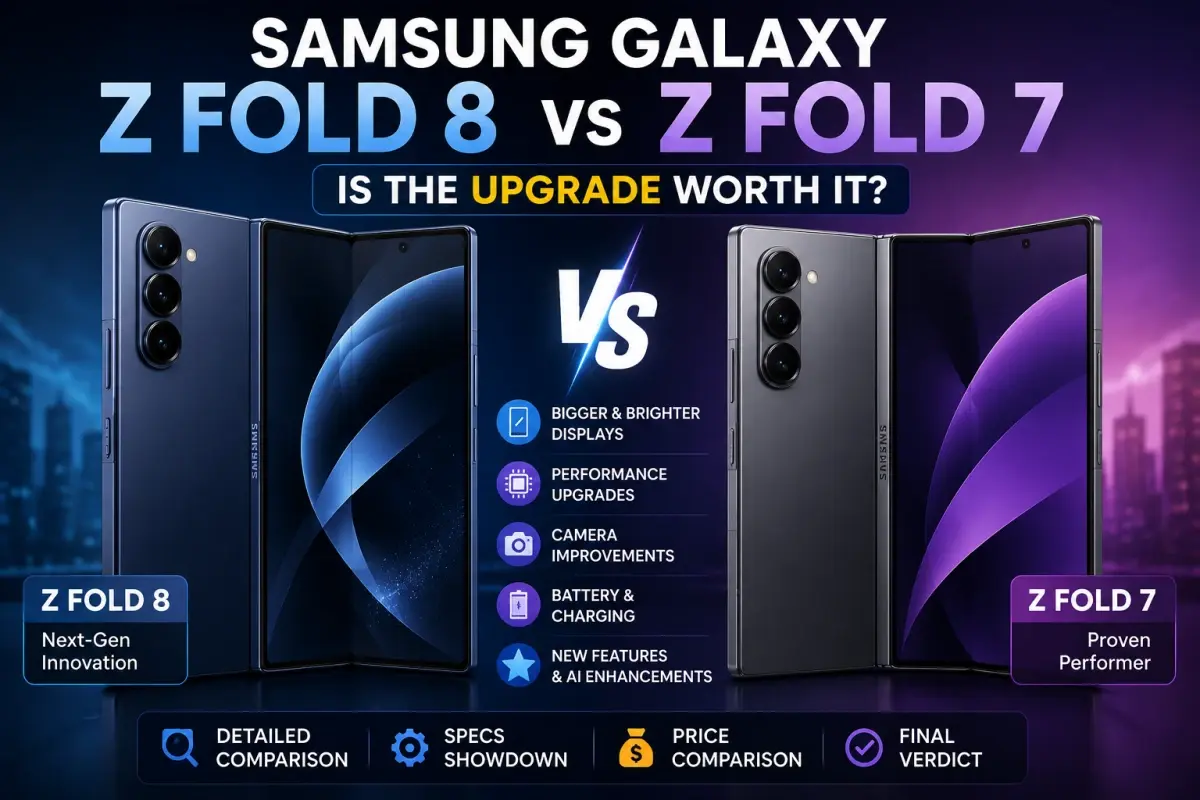
Samsung Galaxy Z Fold 8 vs Galaxy Z Fold 7:Worth to Upgrade?
Samsung Galaxy Z Fold 8 vs Galaxy Z Fold 7: Is it worth the upgrade? Compare specs, battery upgrades, 45W charging, and camera leaks before you buy.

Wed Apr 08 2026
Leaks & Rumors: iPhone 18 Pro Max: Every Leak, Spec and Upgrade Confirmed
The iPhone 18 Pro Max is expected in September 2026 as Apple’s most powerful iPhone yet. It features a 6.9-inch LTPO OLED display, A20 Pro chip, 48MP camera with variable aperture, 5,100–5,200mAh battery, C2 modem with satellite support, and a starting price of $1,199.