Passkeys in 2026: Ditch Passwords, Keep Backups

Published
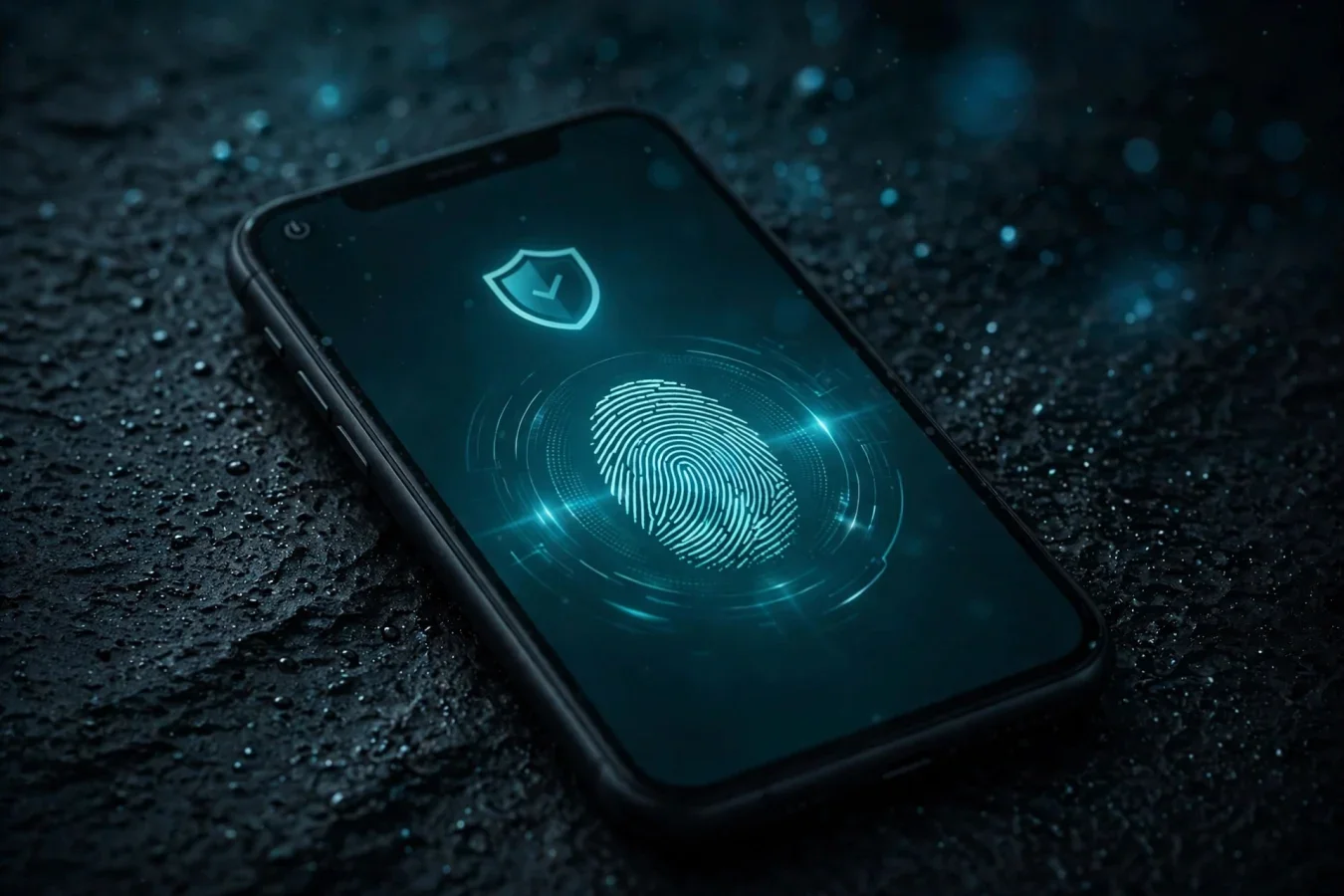
The password is dying. The replacement is already on your phone
You have probably seen the prompt by now: "Create a passkey?" on Google, Apple, Microsoft, GitHub, Amazon, or PayPal. Tap it, unlock with your face or fingerprint, and you never type a password for that account again.
That prompt is not a gimmick. Passkeys are the industry's serious attempt to kill the password — not by making passwords longer or more complicated, but by replacing the shared secret entirely with cryptography that a phishing site cannot steal.
In 2026, passkeys crossed a real threshold. The FIDO Alliance's State of Passkeys 2026 report, released on World Passkey Day, 7 May 2026, based on surveys of 11,000 consumers and 1,400 enterprise decision-makers across ten countries, estimated 5 billion passkeys in active use worldwide, with 90% of people aware of passkeys, 75% having enabled one on at least one account, and 49% using them regularly when available. Later October 2026 coverage put the estimate at about 7 billion — a reminder that these are industry estimates, not audited counts, and that the exact number depends on the source and date. The direction, though, is consistent: passkeys are no longer an experiment.
And yet, most logins still aren't passkeys. Dashlane's third annual Passkey Power 20 report, published in October 2026, found passkeys made up only 28% of measured Google logins, 23% at GitHub, 21% at HubSpot, 18% at PayPal, 17% at Amazon, 8% at eBay, 6% at Microsoft domains, and 4% at OpenAI — even though 57% of Dashlane users now store at least one passkey, up from 40% a year earlier, and monthly passkey authentications among Dashlane users nearly doubled to 2.5 million.
That gap — between availability and everyday use — is the story of passkeys in 2026. This guide explains how they work, why they're safer, how to set them up, and what to do about the weak point they don't solve: recovery when you lose every device.
How a passkey actually works
A passkey is a public-key credential, built on the FIDO2 standard, which combines the W3C's Web Authentication (WebAuthn) API with the Client-to-Authenticator Protocol (CTAP). In plain English, here's what happens when you create one:
- Your device generates a matched pair of cryptographic keys: a private key that stays on your device (or in your password manager vault), and a public key that gets sent to the service.
- When you log in later, the service sends your device a challenge. Your device uses the private key to answer that challenge, after you confirm locally with your fingerprint, face scan, or device PIN.
- The service checks the answer against the public key it holds. If it matches, you're in.
Three properties make this fundamentally safer than a password:
- The private key never leaves your device. The service never sees a secret it could leak in a breach, and there's no password string for an attacker to phish out of you by email.
- A passkey is bound to the real website it was created for. A passkey created for google.com will not answer a page imitating Google from a different address. A pixel-perfect phishing copy gets nothing, because the key simply won't respond to the wrong origin.
- A passkey cannot be reused across sites. Each site gets its own key pair, so a breach at one service doesn't compromise your other accounts — the problem that makes password reuse so dangerous disappears by design.
That's what security professionals mean by phishing-resistant authentication, and it's why the US Cybersecurity and Infrastructure Security Agency (CISA) recommends phishing-resistant multi-factor authentication as the strongest available standard. A passkey is, in effect, two factors in one: something you have (the device or vault holding the key) and something you are or know (your fingerprint, face, or PIN).
Compare that with the alternatives, in a table:
| Method | Phishing resistant? | What can go wrong |
|---|---|---|
| Password only | No | Reuse, phishing, database breach |
| Password + SMS code | No | SIM swap, interception, code relayed to attacker |
| Password + app code (TOTP) | Partially | Code can be relayed in real-time phishing |
| Passkey (FIDO2) | Yes, origin-bound by design | Lost device without backup or sync enabled |
Passwords also fail on usability: Microsoft has reported a 98% successful sign-in rate for passkeys, against 32% for passwords, and passkey sign-ins are about 73% faster than password plus code in one guide's testing.
Who is pushing passkeys, and how far have they got
Apple, Google, and Microsoft all now treat passkeys as the default sign-in option, rather than a hidden setting, according to October 2026 guides. Each has taken a slightly different path:
- Google made passkeys the default sign-in option for personal accounts back in 2023. Google alone has said roughly 800 million accounts now use passkeys, generating more than 2.5 billion sign-ins, in figures compiled by passkey trackers — self-reported platform numbers, so treat them as directional rather than precise.
- Apple built passkeys into Face ID and Touch ID across iPhone, iPad, and Mac, synced through iCloud Keychain, and lets you carry them between Apple devices. Apple also enables auto-upgrade of passwords to passkeys on strong authentication in iOS 26, according to 2026 guides.
- Microsoft made passkeys the default for new accounts in May 2025, and in 2026 it started switching users off text-message codes, with plans to shut those down completely in 2027, according to coverage. Microsoft reported registering close to one million new passkeys per day after making them the default for new consumer accounts, and has spent much of 2026 pushing Entra ID tenant admins toward mandatory passkey policies for workforces.
Setting up passkeys on Google, Apple, and Microsoft
Setting up a passkey takes about a minute per account: find the security settings, choose to create a passkey, and confirm with your device unlock.
Sign in to your Google account, go to Security, then Passkeys, and choose Create a passkey. Google will ask you to confirm with your device's screen lock, fingerprint, or face. Once created, the passkey is stored in Google Password Manager (on Android and Chrome) or in your device's keychain, and synced across your signed-in devices. Next time you sign in, Google will offer the passkey first — tap it, unlock, and you're in, no password typed.
Apple
On iPhone, iPad, or Mac, passkeys are built into iCloud Keychain. When a site or app offers a passkey, tap Create, and confirm with Face ID, Touch ID, or your device passcode. The passkey is stored in iCloud Keychain and synced across your Apple devices signed in to the same Apple Account, with end-to-end encryption.
Microsoft
Sign in to your Microsoft account, go to Security, then Manage how I sign in, and choose to add a passkey. Microsoft will prompt you to create it on your device or in Microsoft Authenticator, and confirm with your PIN, fingerprint, or face. For new Microsoft accounts created since May 2025, passkeys are the default, and Microsoft is progressively moving existing users off SMS codes.
Password managers and hardware keys
Bitwarden and 1Password both support passkey storage and sync, useful across ecosystems. Passkeys don't yet move cleanly between Apple, Google, and Microsoft, and the Credential Exchange Protocol that would fix that is still a draft.
For your most sensitive accounts — email, banking, domain registrar, cloud admin — consider a hardware security key as well, such as a FIDO2 USB or NFC key. It's a physical device you tap to sign in, it works even if your phone is dead, and it's the highest-assurance option for administrator and finance accounts. Keep one key on your keyring and a backup key in a safe place. That's not overkill for an account that could lock you out of everything else.
The weak point nobody should skip: recovery
Here's the honest caveat that most passkey hype skips: the FIDO2 protocol was designed to make authentication phishing-resistant. It was not designed to solve account recovery.
If you lose every device that holds your passkeys at once — phone stolen, laptop wiped, no synced vault — your fallback is, in practice, still an email reset link, the exact mechanism passkeys were supposed to make obsolete. Palo Alto Networks' Unit 42 research, cited in 2026 coverage, showed techniques to hijack Google passkeys that targeted account recovery, a compromised browser, and fallback options — not the cryptography itself, which held up. The cryptography is sound. The recovery path around it is where attackers focus.
So before you go fully passwordless on any important account, do this recovery checklist:
- Sync passkeys to at least two devices, or to a password manager vault you can access from a new device. A passkey on one phone only is a single point of failure.
- Keep a hardware security key as a backup sign-in method for your email account, at minimum. Email is the recovery hub for almost everything else.
- Don't delete your password or authenticator app until your passkey is confirmed working on a second device, and you've tested signing in from a different device.
- Check each service's recovery options — some let you add a trusted contact, a recovery code, or a second passkey on a different device. Set those up now, not when you're locked out.
- For shared accounts, make sure at least one other trusted person has access, through a shared vault or a second passkey, so a lost device doesn't lock out a household or a team.
This is not a reason to avoid passkeys. It's a reason to set them up properly. A synced passkey, with a hardware backup, is far safer than a reused password with SMS codes. An unsynced passkey on a single lost phone, with no backup, is worse than a password you can reset by email. The difference is entirely in how you set it up.
When to keep a password (for now)
Passkeys are the future, but passwords aren't gone yet, and pretending otherwise will lock you out of accounts that don't support passkeys yet. Keep a password manager, with unique, random passwords, for:
- Services that don't offer passkeys yet — check the Passkeys Directory, but assume many smaller sites, banks, and legacy systems still need passwords.
- Shared or service accounts where passkey sharing isn't practical, or where a team needs a password for automation that doesn't support WebAuthn.
- Recovery fallbacks, where a service requires a password as a secondary method, even after you add a passkey.
The best setup in 2026 is a hybrid: passkeys wherever the service offers them, a password manager for everything else, and a second factor — ideally an app code or a hardware key, rather than SMS — on accounts that still need passwords. That gives you phishing resistance where it counts, without losing access to the long tail of services that haven't caught up yet.
Start with your email, your password manager, and your banking app — the accounts that unlock everything else. Create a passkey, sync it to a second device, add a hardware backup for email, and test signing in from another device. Then work through your other important accounts, one at a time, over a week. By the end of it, you'll sign in faster, you'll stop worrying about phishing emails asking for your password, and you'll have a recovery plan that actually works if your phone goes missing.
The password had a good run. It lasted decades longer than it should have, because nothing better was ready at scale. Now something better is ready, it's already on your phone, and it takes a minute to turn on. Just don't skip the backup step.
FAQs
What is a passkey?
A passkey is a FIDO2 credential that replaces a password with a pair of cryptographic keys. The private key stays on your device, the public key is stored by the service, and you unlock it with your face, fingerprint, or device PIN.
Are passkeys safer than passwords?
Yes, because they are phishing-resistant by design. A passkey is bound to the real website it was created for, cannot be reused across sites, and the private key never leaves your device, so there is no password to steal or leak.
How many passkeys are in use in 2026?
The FIDO Alliance estimated 5 billion passkeys in active use worldwide in May 2026, with 90% awareness and 75% of people having enabled one. Later October 2026 coverage put the estimate at about 7 billion. Treat these as industry estimates, not audited counts.
How do I set up a passkey on Google, Apple, or Microsoft?
Go to the account security settings, choose to create a passkey, and confirm with your device unlock. Google stores it in Google Password Manager, Apple in iCloud Keychain, and Microsoft in your device or Authenticator app.
What happens if I lose my phone with all my passkeys?
If passkeys are synced to another device or a password manager vault, you can sign in from there. If they are only on the lost phone, you fall back to email reset or other recovery options, which is why syncing and a hardware backup key matter.
Can I move passkeys between Apple, Google, and Microsoft?
Not cleanly yet. Passkeys sync within each ecosystem, and third-party password managers help across platforms, but the Credential Exchange Protocol for direct cross-platform transfer is still a draft specification.
Should I delete my passwords after adding passkeys?
Not immediately. Keep your password manager for services without passkeys, and do not delete a working password or authenticator until your passkey is confirmed working on a second device and your recovery options are set.
Was this article helpful?

Written By
TechorCoffeeContributing Writer
TechorCoffee is a technology reporter and software creator writing reviews and tutorials for TechOrCoffee.
Comments (0)
Leave a Comment
Read Next
Thu Aug 13 2026
iPhone 18 Leaks and Rumors: Everything Apple’s 2026 iPhone
iPhone 18 leaks reveal rumored specs, A20 Pro chip, camera upgrades, smaller Dynamic Island, AI features, price, launch date and more.

Thu Oct 22 2026
PHP Security Vulnerabilities: Key Risks for Websites
Learn why PHP security matters, how website vulnerabilities can create risks, and what website owners can do to keep their systems secure.
Fri Oct 30 2026
iPad Air M4 vs Pro M5: Which iPad to Buy?
iPad Air M4 vs iPad Pro M5 in 2026: display, chip, Pencil, keyboards, battery and price compared, with a clear pick for students, artists and pros.